🧰 Customize Your CRM in Minutes: How to Make Agent CRM Look, Sound, and Feel Like You
When you first log in to Agent CRM, you’ll see a powerful set of tools at your fingertips:
- A website
- Pre-written email templates
- Branding-ready landing pages
- Automated forms and funnels
But here’s the thing: none of them are uniquely you — yet.
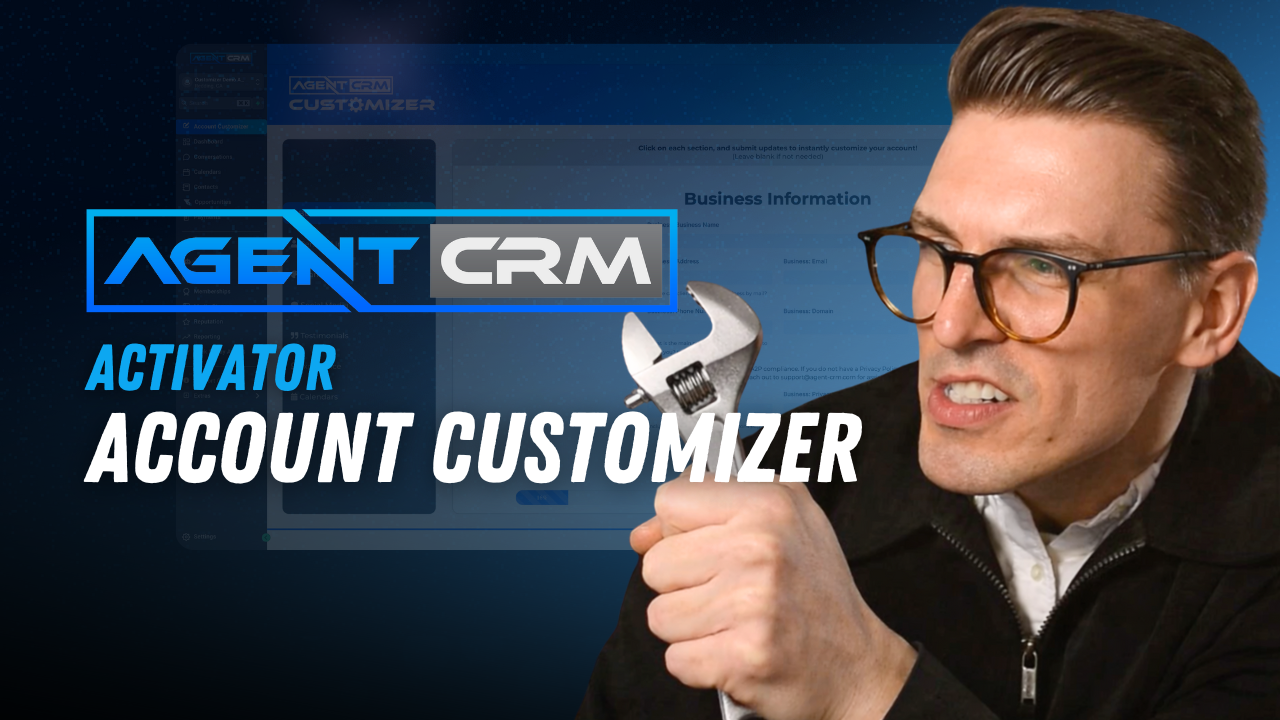
That’s where the Agent CRM Customizer comes in.
It’s your control panel for transforming your account from “generic” to fully personalized — all in one place.
In this tutorial, we’ll walk through exactly how to:
- Update your logo, headshot, and business info
- Add your bio and digital signature
- Change colors to match your brand
- Plug in your calendar link
- Showcase testimonials and social media links
Let’s get started.
🎨 Step 1: Access the Customizer
From your Agent CRM dashboard, go to the top-left menu and click “Account Customizer.”
Inside, you’ll find all the areas you need to update:
- Business Info
- Personal Details
- Branding (colors & logo)
- Social Media
- Testimonials
- Signature
- Calendar Links
You can skip around, save as you go, and return anytime to make updates.
🧑💼 Step 2: Add Your Business Name, Products, and Bio
Start with your core info:
- Business name
- Insurance products you offer (ACA, Medicare, Life, Final Expense, etc.)
- Short 220-character bio
✅ Pro Tip: Adding your products helps AgentAI understand what you offer, so it can respond intelligently to leads later.
🖼️ Step 3: Upload Your Headshot and Signature
Make it personal:
- Upload a professional headshot or logo
- Use our built-in tool to draw your digital signature (perfect for ACA consent forms and automated emails)
- Drop in your NPN number and website link if you have one
🎨 Step 4: Update Your Brand Colors and Logo
Use our “Find Your Brand Colors” tool to extract the color scheme from your logo. Set:
- Primary color (backgrounds, headers)
- Call-to-action color (buttons, highlights)
Then upload your logo to replace the default template brand.
🖌️ This change will instantly reflect across all your landing pages, emails, and site assets.
📱 Step 5: Link Your Social Media Profiles
Enter the URLs for your:
- YouTube
If you leave a field blank, it won’t show up on your site. Easy!
💬 Step 6: Add Testimonials for Trust & Credibility
Don’t skip this step!
Even a short 2–3 sentence quote from a happy client builds trust with visitors. Add a few solid testimonials and let your track record speak for itself.
📈 Step 7: Add Your Calendar Link
Your emails and funnels are already built with “Book a Call” buttons — now they need to point to the right calendar.
- Go to Settings > Calendars in Agent CRM
- Copy the calendar URL
- Paste it in the Customizer under your chosen product (Final Expense, ACA, etc.)
This will update every automation and email with your correct scheduling link.
✅ You’re Done — And Everything Is Updated
Once you hit save and refresh your landing pages or emails, you’ll see:
- Your logo
- Your brand colors
- Your name, bio, and signature
- Your testimonials
- Your calendar link in every call-to-action
⚡ Just like that, your entire CRM ecosystem is updated to reflect you.
💡 Final Thoughts
The Customizer isn’t just a convenience — it’s a launchpad.
You now have an entire suite of pre-built marketing tools branded and connected to your business.
Next step? Use your updated account to launch ads, nurture leads, and book appointments — all inside Agent CRM.
Need help getting your branding dialed in?
📅 Book a QuickFix Call with our team: https://live.agent-crm.com
Let’s make sure everything reflects your brand so you can grow with confidence.
Let your brand do the talking — and let Agent CRM do the rest.