We’re excited to announce our official integration between Agent CRM and HealthSherpa Medicare!
This powerful new connection eliminates the headache of copying lead info from one system to another. Now, your contacts inside Agent CRM can sync directly into HealthSherpa Medicare—ready to quote, enroll, and manage, all from one unified workflow.
No extra logins. No clunky exports. Quote and Enroll Medicare Clients Faster—No More Double Data Entry! A seamless sync from the Insurance High Level CRM to your quoting platform.
(If you’re not using HealthSherpa and want to eliminate the copy-paste manual tasks, you can use the Agent CRM Data Bridge Tool)
⚙️ What This Integration Does
✅ Sync contacts from Agent CRM to HealthSherpa Medicare in real-time
✅ Automatically generate a Medicare quoting session link inside each contact
✅ Eliminate dual data entry across quoting and enrollment
✅ Support reassignment workflows across your team
✅ Custom field mapping ensures contacts are pre-filled and ready to enroll
💬 “We’re the easiest way for any agent or agency to quote and enroll in Medicare plans… and now seamlessly connected to Agent CRM.” — Jeff from HealthSherpa
🔐 Before You Begin
Make sure:
-
Your Agent CRM sub-account Location ID is ready
-
Your HealthSherpa account is upgraded to an Agency account
-
The same email address is used in both Agent CRM and HealthSherpa
-
Your downline agents are connected to your HealthSherpa agency (if applicable)
🔑 Step 1: Generate Your API Key from HealthSherpa
-
Log in to your HealthSherpa Medicare Agency account
-
Go to the Integrations tab
-
Under the GoHighLevel section, click Generate your API key
-
Enter your Agent CRM Location ID(s) (comma-separated if using sub-accounts)
-
Click Generate API Key
🛠 Need to update your Location IDs later? Email: medicare-integrations@healthsherpa.com
🔌 Step 2: Install the Integration in Agent CRM
If you’re using Agent CRM, use this direct install link:
👉 Install the HealthSherpa Medicare App for Agent CRM
Make sure:
-
You are logged into both Agent CRM and HealthSherpa in the same browser
-
You copy-paste the API Key generated from HealthSherpa
-
You select the correct sub-account
Once installed, you’ll see confirmation inside HealthSherpa.
📥 Step 3: Set Up Custom Fields in Agent CRM
Go to: Settings → Custom Fields → Add New
Create these two exactly as shown (lowercase required):
-
hsmedicare_contact_id(Single Line Text) -
hsmedicare_redirect_url(Single Line Text)
⚠️ These fields are case-sensitive. Incorrect naming = failed sync.
🔁 Step 4: Create Your Workflows
🛠 Create Contact Workflow
-
Trigger: Contact Created
-
Optional: Add a filter for Medicare leads (e.g. tag = Medicare)
-
Action: Assign to User → assign agent
-
Action: Create Contact V1 (HealthSherpa)
-
Action: Update Contact Field:
-
hsmedicare_contact_id= output from Create Contact step -
hsmedicare_redirect_url= output from Create or Update step
-
🔁 Update Contact Workflow
-
Trigger: Contact Updated (e.g., updated email)
-
Action: Update Contact V1 (HealthSherpa)
-
Action: Update Contact Field:
-
hsmedicare_redirect_url= output from Update Contact step
-
🧹 Optional: Backfill Existing Contacts
To sync old contacts from Agent CRM to HealthSherpa:
-
Go to
Contacts → Select Contacts -
Click
Add to Automation→ Choose your Create Contact Workflow -
Run in batches of ~20 to avoid sync throttling
🔄 Reassigning Contacts Between Agents?
If contacts are moved to another agent inside Agent CRM:
-
Create a new workflow
-
Trigger: Contact Changed → filter:
Assigned User has changed -
Add Condition: Only continue if
hsmedicare_contact_id exists -
Add Create Contact V1 action
-
Update both custom fields with new agent’s values
This ensures the contact appears in the new agent’s HealthSherpa Medicare account with a fresh redirect link.
✅ What Happens Now?
-
Your Medicare contacts inside Agent CRM will automatically appear in HealthSherpa
-
A redirect link is saved inside the CRM for instant quoting
-
No more retyping contact details — it’s all pre-filled
-
Your team can quote and enroll faster than ever
🛠 Troubleshooting Tips
My contacts aren’t syncing:
-
Confirm the user is assigned to the contact
-
Double-check your API key and Location ID
-
Confirm emails match between both platforms
-
Make sure fields are lowercase:
hsmedicare_contact_idandhsmedicare_redirect_url
Fields not updating properly?
Re-map the field in the workflow and publish again. Then test.
For support, contact medicare-integrations@healthsherpa.com
🎯 Why This Integration Matters
✅ No more manual entry
✅ Faster quoting = more enrollments
✅ Accurate, real-time sync
✅ Agency-ready: works across downline users
✅ Pairs perfectly with our Medicare marketing automations
✅ The Agent CRM solution continues to innovate as the Insurance GoHighLevel CRM
🌟 Ready to Try It?
This integration is available to all Agent CRM users.
👉 Start your free 14-day trial of Agent CRM
Then follow the install steps above to connect your HealthSherpa Medicare account!
If you’re not using HealthSherpa and want to eliminate the copy-paste manual tasks, you can use the Agent CRM Data Bridge Tool
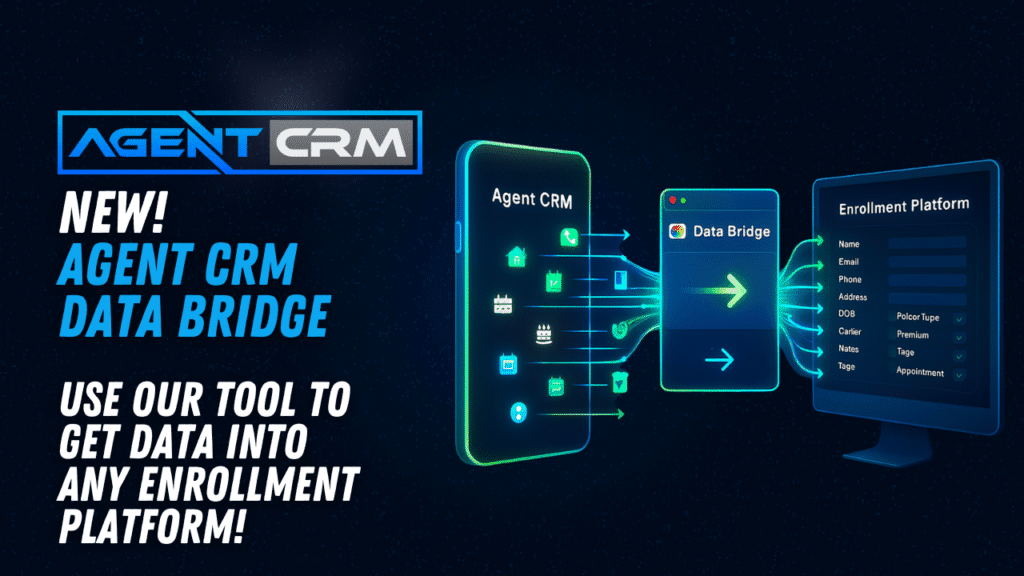
Agent CRM Data Bridge Tool for insurance enrollment platforms – available to all Agent CRM users!